How to Integrate OfficeRnD with Croissant
Connect OfficeRnD to Croissant and sync your conference rooms both ways. Members book on Croissant, availability stays current in both systems, and your OfficeRnD calendar always reflects the truth. No manual work required.


Getting Started with OfficeRnD on Croissant
OfficeRnD manages your meeting rooms, desks, and memberships. Connect it to Croissant and your conference rooms sync both ways: members book on Croissant, and availability stays current in OfficeRnD automatically.
The whole setup takes just a few minutes. Follow the five steps below to get connected.
How It Works

 John RueJohn Rue
Croissant reads availability straight from OfficeRnD and writes bookings back to it. Whenever a member books on Croissant, OfficeRnD updates automatically.
Real-Time Availability
The time slots a member sees on Croissant come straight from your OfficeRnD calendar. If a room is already booked in OfficeRnD, it won't show as available on Croissant.
Booking Details in OfficeRnD
Every Croissant booking writes full details into the OfficeRnD booking description (who booked the room, when, and for how much), so you keep complete visibility without leaving OfficeRnD.
Multiple Locations, One Connection
OfficeRnD organises meeting rooms by location, and a single connection covers them all. When you map rooms, they're grouped by location name, so the right one is easy to find.
Step 1: Find Your Organisation Slug
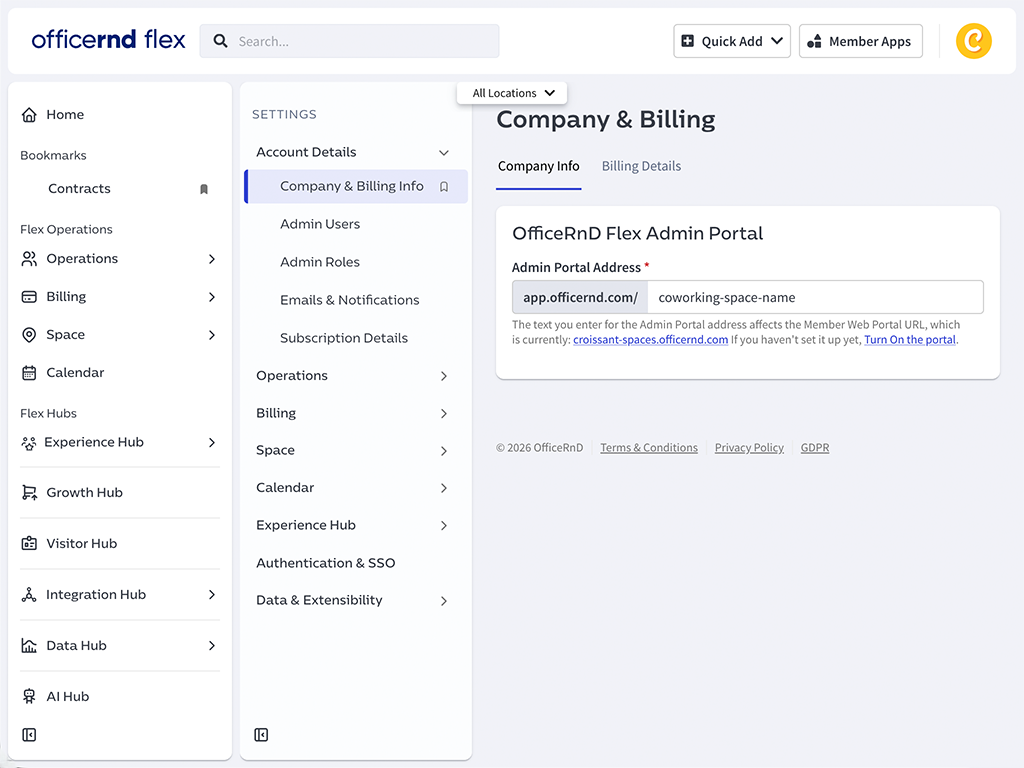
On the OfficeRnD Portal, go to Settings → Account Details → Company & Billing Info, find your Organisation Slug
- Organization Slug: coworking-space-name
Step 2: Add an OfficeRnD Application
On the OfficeRnD Portal, go to Settings → Data & Extensibility → Developer Tools → Add Application, create an application. This allows Croissant to read and sync your bookings on OfficeRnD.
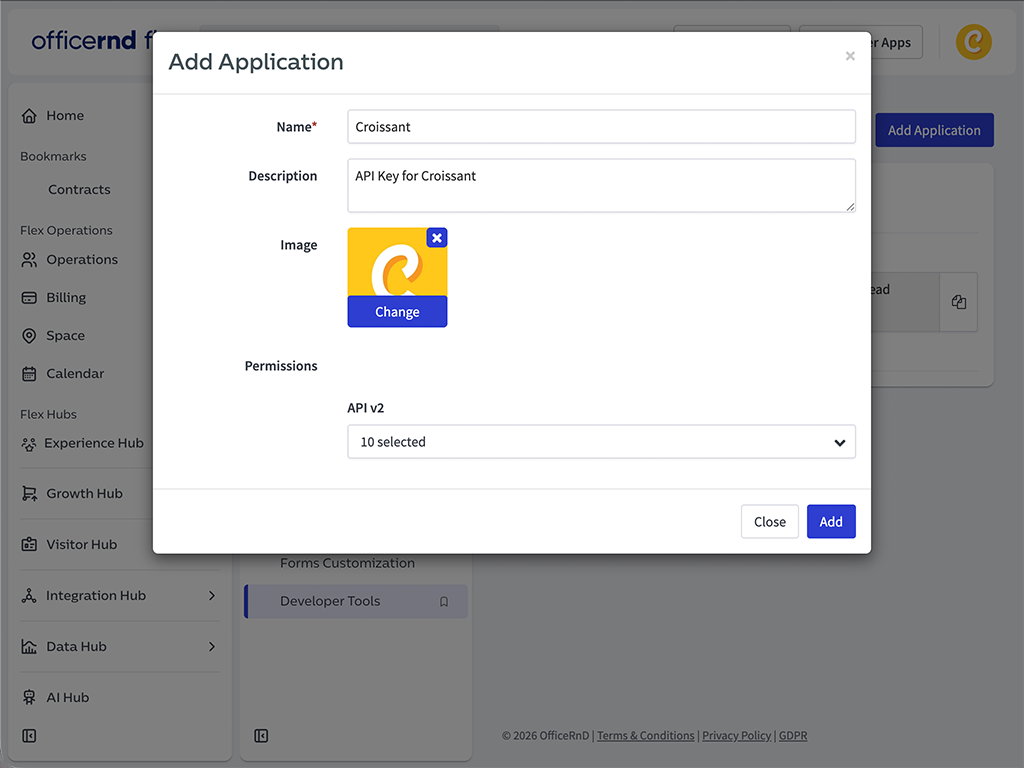
Fill in the following details:
- Name: Croissant
- Description: API Key for Croissant
- Permissions: grant the following scopes:
- flex.billing.resourceRates.read
- flex.space.assignments.read
- flex.space.bookings.read
- flex.space.bookings.create
- flex.space.bookings.delete
- flex.space.locations.read
- flex.space.resources.read
- flex.community.members.read
- flex.community.members.create
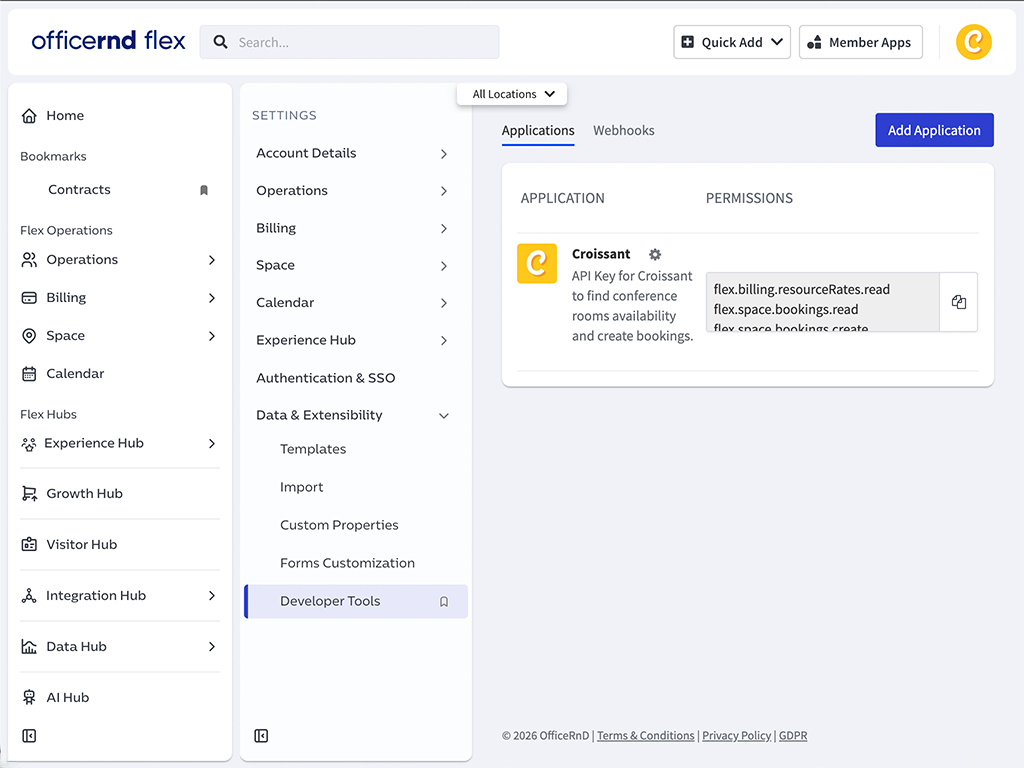
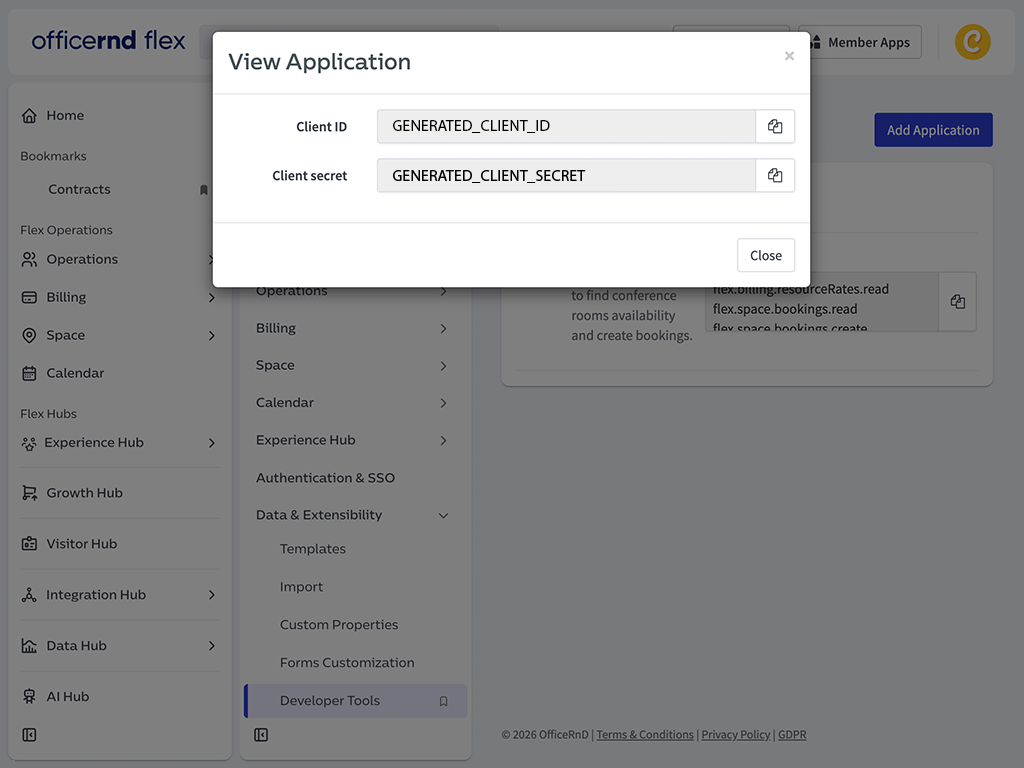
Once the application is created, click on the ⚙️ icon to View to view your Client ID and Client Secret:
- Client ID: the ID of the application you create in OfficeRnD
- Client Secret: the matching secret for that application
Step 3: Link Connection
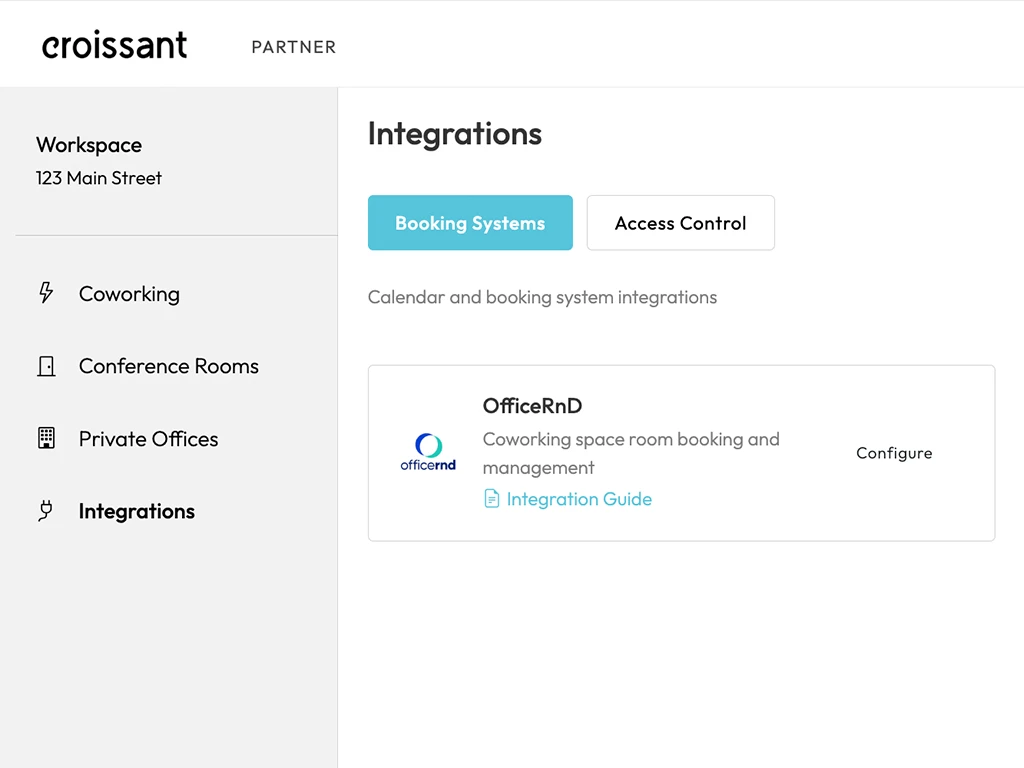
On the Croissant Portal, navigate to Integrations → Booking Systems → OfficeRnD → Add, and enter the three details you collected:
- Organisation Slug: your organisation's unique identifier, from Step 1
- Client ID: the ID of the application you created in Step 2
- Client Secret: the matching secret for that application
Step 4: Map Your Rooms and Offices
On the Croissant Portal navigate to Conference Rooms or Private Offices and assign each conference room or private office to its matching OfficeRnD resource. Resources are grouped by location, so the right one is easy to find, even across multiple sites.
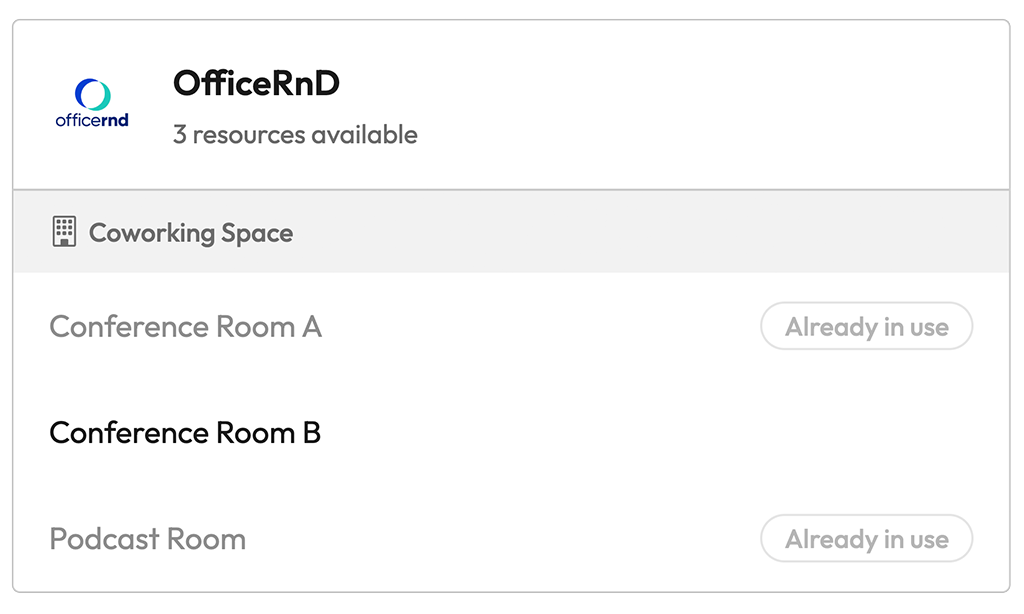
Once mapped, availability syncs automatically for both, members book on Croissant, and the matching OfficeRnD resource stays up to date.
Step 5: Testing
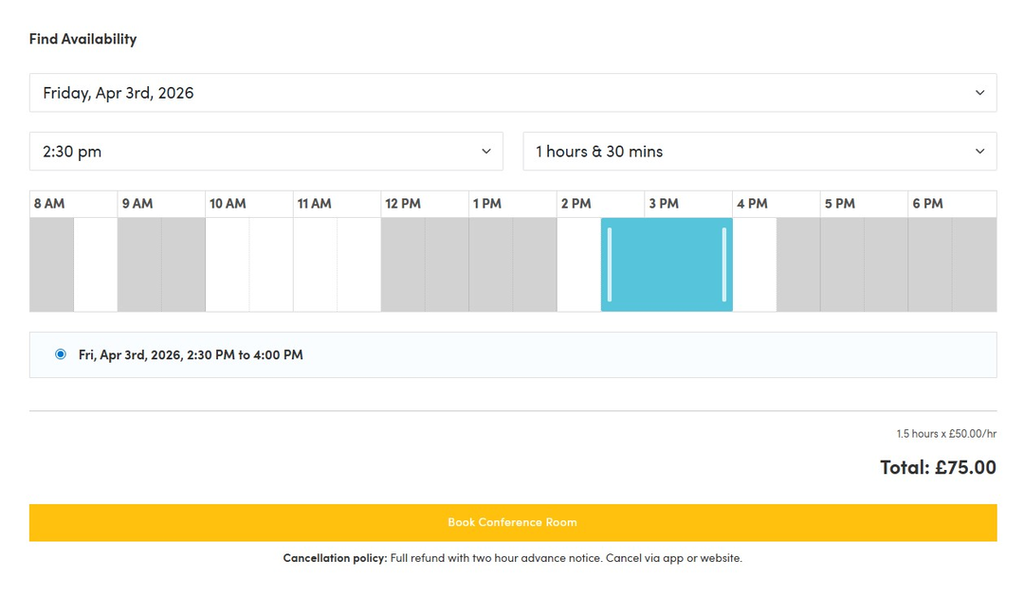
Before going live, confirm everything is wired up correctly.
How to Test the Integration
- Open one of your conference rooms on Croissant
- Confirm its availability matches OfficeRnD
If availability lines up, Croissant is talking to OfficeRnD and your integration is ready to go. If something looks off, double-check your Organisation Slug, Client ID, and Client Secret: or reach out to our team for help.
FAQ
Frequently Asked Questions
Once you have the required details, configuring the integration takes about 5 minutes. If you get stuck, email partners@getcroissant.com and we'll help you get set up.
First, confirm you granted the app all the listed permissions. Then check that your Organisation Slug, Client ID, and Client Secret are entered correctly on the Croissant Portal. If it still fails, email partners@getcroissant.com and our technical team will help.
Croissant periodically checks that every active booking still exists in OfficeRnD. If one is deleted or changed outside Croissant, we cancel the order automatically and issue a refund based on policy.
No. Members book entirely through Croissant and never touch OfficeRnD. The integration is invisible to them.
Let Croissant sync your conference rooms with OfficeRnD
Get started with OfficeRnD conference room availability synchronisation on Croissant. Our partnerships team is here to help you every step of the way.
- ✓ Seamless availability synchronisation for your conference rooms
- ✓ Easy configuration through the Croissant Portal
- ✓ Dedicated support from our partnerships team