How to Integrate Salto KS Electronic Locks with Croissant
A step-by-step guide to connecting your Salto KS electronic locks with the Croissant platform. Set up seamless access control for your coworking space in just a few steps.


Getting Started with Salto KS on Croissant
Salto KS is a cloud-based electronic lock system that provides secure, keyless access to your coworking space. By integrating Salto KS, Croissant members can unlock doors directly through the Croissant app, no physical keys or fobs required.
Step 1: Setup
Before connecting your locks, you'll need to complete a quick setup with both the Croissant partnerships team and your Salto KS account.
What You Need to Do
- Contact our partnerships team: Send an email to partners@getcroissant.com to let us know you're interested in setting up Salto KS electronic locks on Croissant. We'll guide you through the process and ensure your account is ready.
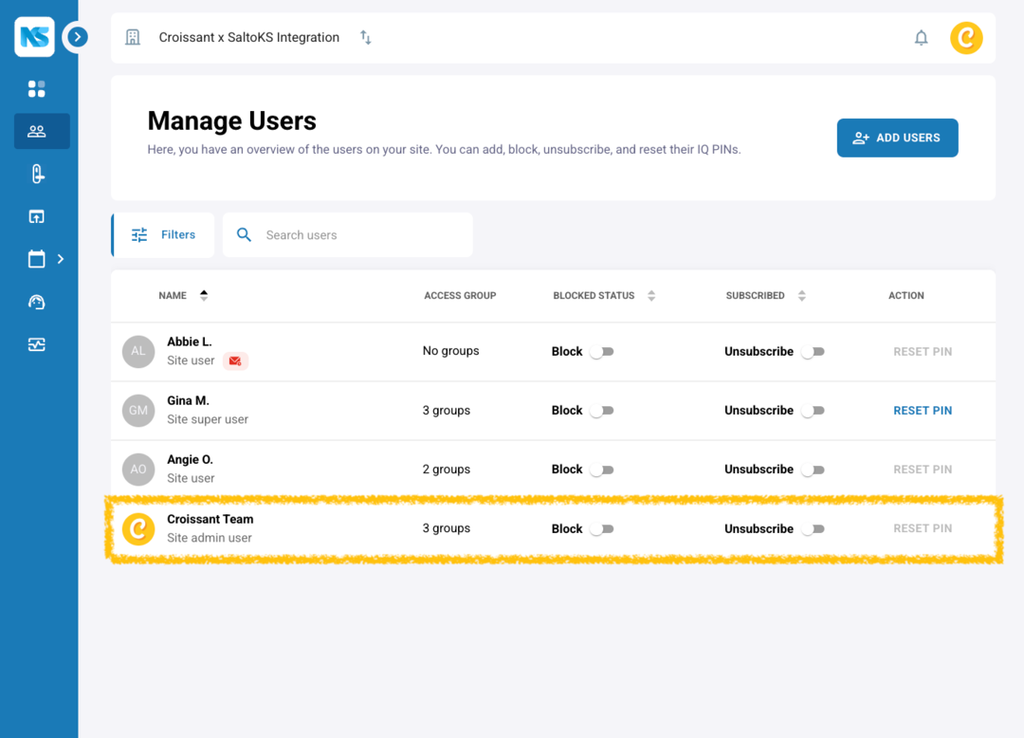
- Invite Croissant to your Salto KS portal: In your Salto KS account, add Croissant's Salto KS account admin@getcroissant.com to your users with site-admin access. This allows Croissant to communicate with your site's locks and grant access to Croissant members.
Step 2: Connection Information
Before configuring the integration in Croissant, you'll need one piece of information from your Salto KS account:
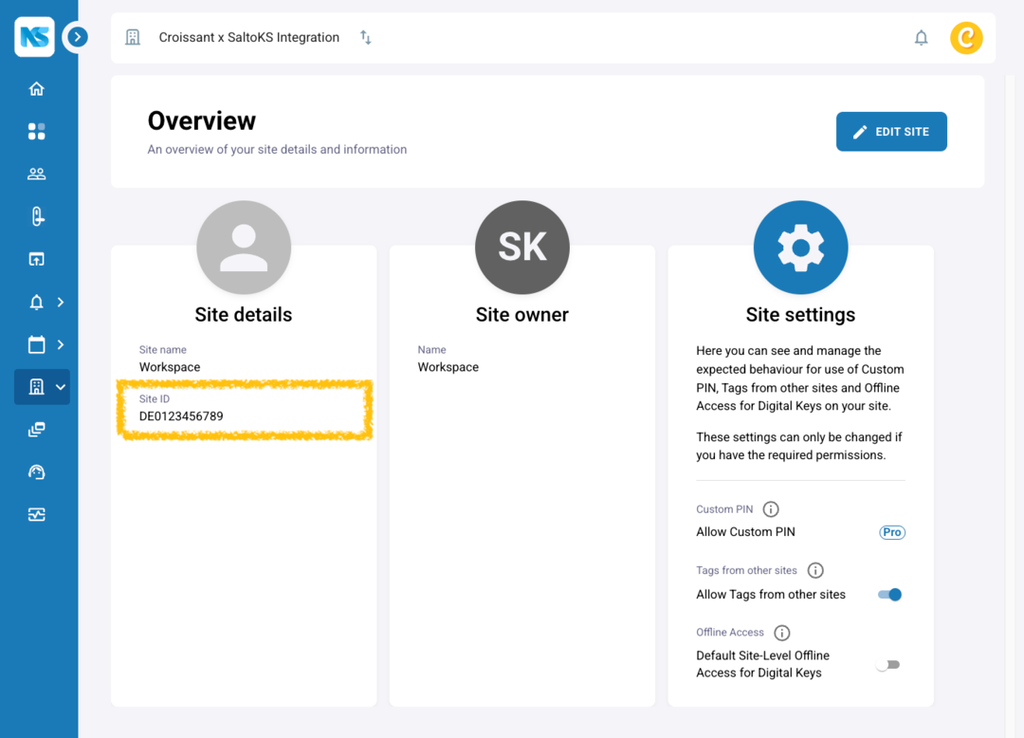
- Salto KS Site ID: Your unique site identifier from Salto KS
You can find your Site ID in your Salto KS admin portal.
Step 3: Link Connection
Once you have your connection information, configure your Salto KS locks in the Croissant Portal.
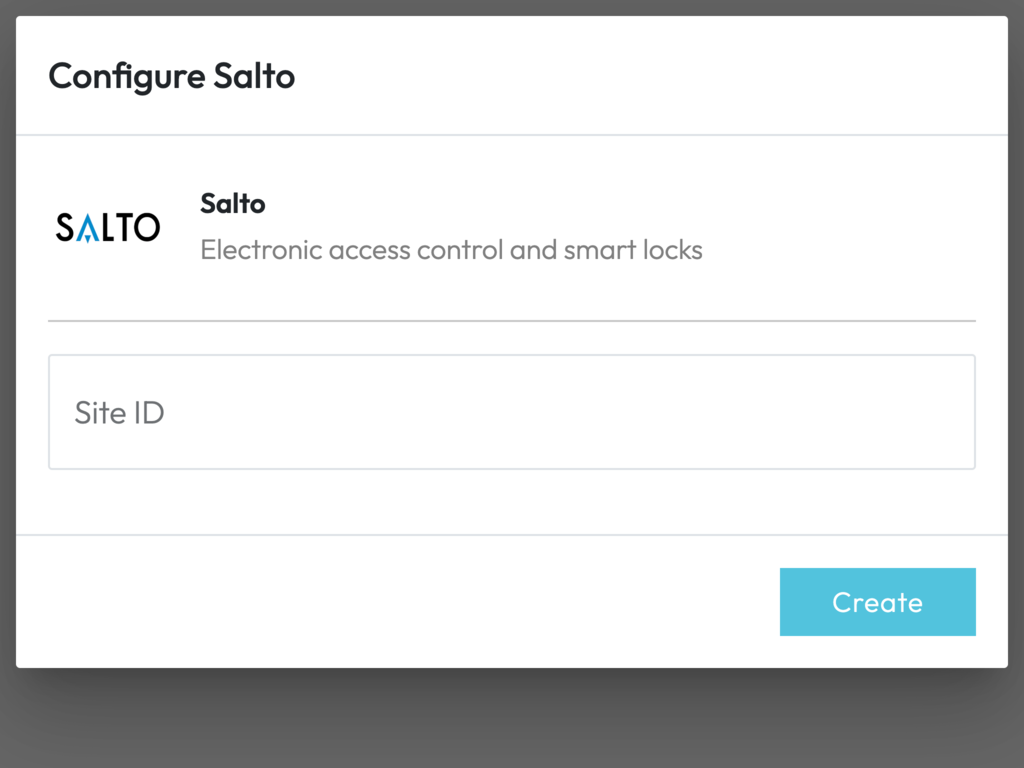
How to Connect
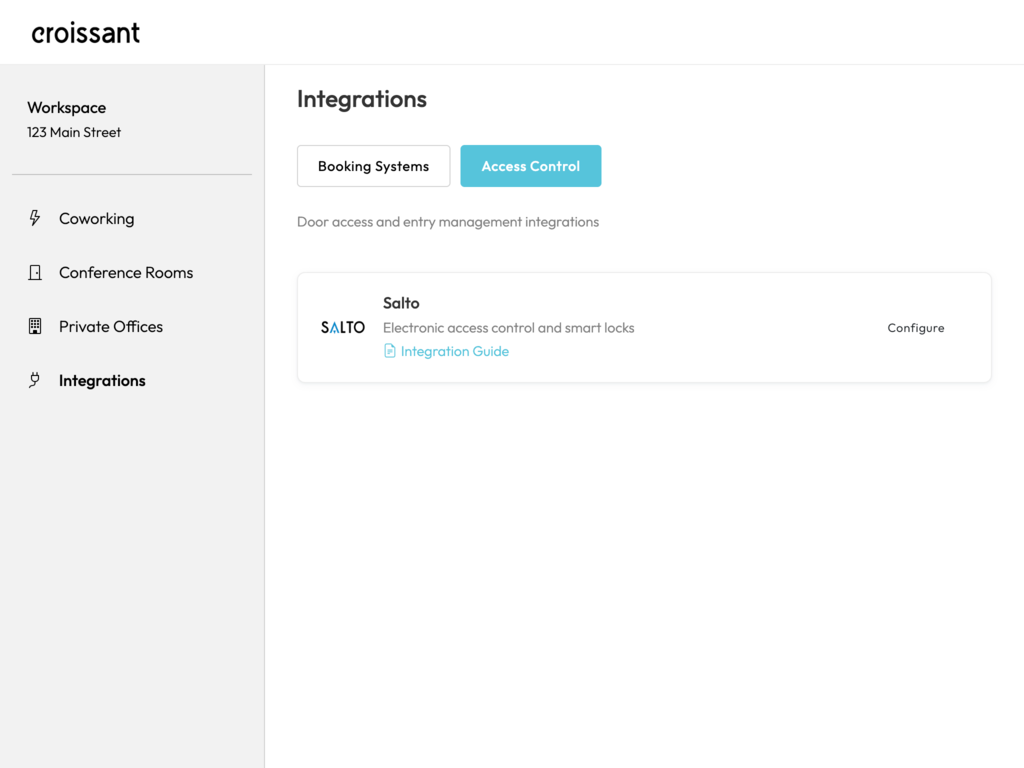
- Log into the Croissant Portal
- Navigate to Integrations and open the Access Control tab
- Select Salto KS and click Configure
- Enter your Site ID
Step 4: Croissant PIN Setup
After you've submitted your connection details, the Croissant team will need to configure a secure PIN to access your devices. This process takes up less than 24 hours to activate.
Once activated, you'll receive an email confirming that we've verified the connection. From there, you can continue to add your locks below.
Allow up to 24 hours for our team to finish setting up your secure PIN.
Step 5: Adding Locks
Once your connection is activated, Croissant automatically discovers the locks on your Salto KS site.
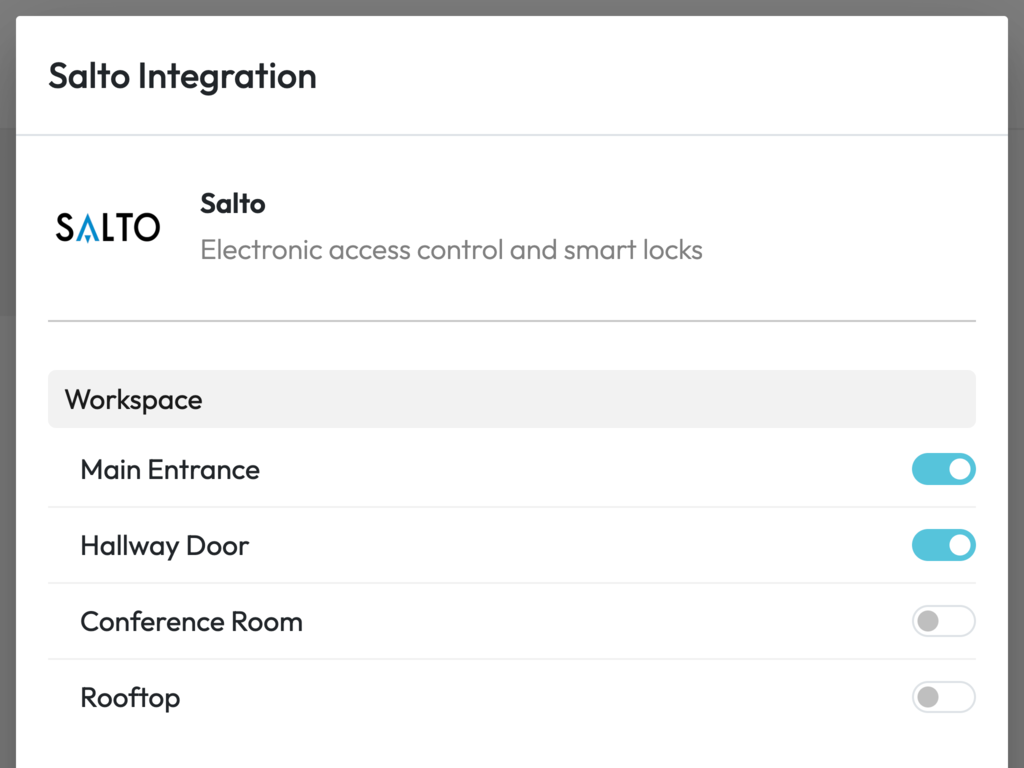
To Add Your Locks
- Go back to Integrations > Access Control > Salto KS
- Open your connection to see the discovered locks, grouped by location
- Toggle on each door you want to connect to Croissant
Step 6: Verify Your Setup
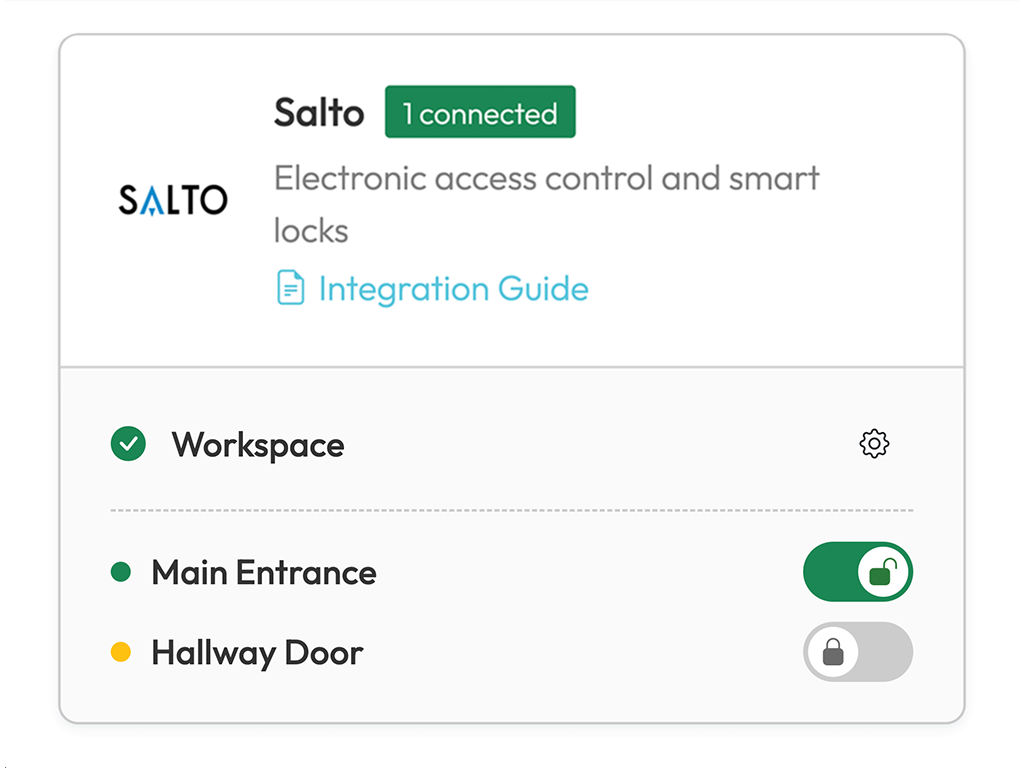
Once your doors are added, test them right from the list, flip a door's unlock toggle and confirm it opens. If something doesn't look right, double-check your Site ID or contact our team.
FAQ
Frequently Asked Questions
It normally takes around 5 minutes to configure a lock once you have all the required information. If you need help, reach out to partners@getcroissant.com and we'll help you get set up.
You'll need an active Salto KS account with cloud-based access management. Contact your Salto KS representative or our partnerships team if you're unsure whether your current plan supports third-party integrations.
First, verify that Croissant is included as an allowed user with access to your devices. Then confirm that the Site ID is entered correctly in the Croissant Portal. If the issue persists, contact partners@getcroissant.com and our technical team will help resolve it.
Absolutely. You can edit or remove any configured lock from the Access Control section in the partner portal at any time. Changes take effect immediately.
For autonomous spaces, Croissant requires additional verification from members to ensure that your space remains secure. Unlocking functionality is only available for members that have an active booking at your space.
Let Croissant automate your space with Salto KS
Get started with Salto KS electronic lock integration on Croissant. Our partnerships team is here to help you every step of the way.
- ✓ Seamless electronic lock access for your coworking members
- ✓ Easy configuration through the Croissant partner portal
- ✓ Dedicated support from our partnerships team