How to Integrate Outlook Calendar with Croissant
Connect Outlook Calendar to Croissant and sync your conference rooms both ways. Members book on Croissant, availability stays current in both systems, and your Outlook calendar always reflects the truth. No manual work required.

Getting Started with Outlook Calendar on Croissant
Outlook Calendar is Microsoft's cloud-based calendar service. Connect it to Croissant and every conference room booking made on Croissant appears as an event on your Outlook calendar, and Croissant reads availability straight from your calendars, so rooms that are already booked are never offered to members.
The whole setup takes under two minutes. Follow the three steps below to get connected.
How It Works

 John RueJohn Rue
Croissant reads availability from Outlook Calendar and writes each booking back as a calendar event. Whenever a member books on Croissant, the event appears on your calendar automatically.
Real-Time Availability
The time slots a member sees on Croissant come straight from your Outlook calendar. If a room is already booked on the calendar, it won't show as available on Croissant.
Booking Details on Your Calendar
Every Croissant booking shows up as a full calendar event, so you keep complete visibility without leaving Outlook.
One Account, Multiple Calendars
A single Microsoft account connection gives Croissant access to every editable calendar on that account. When you map rooms, all your calendars are listed, so you can give each conference room its own dedicated calendar.
Step 1: Connect Outlook Calendar
Start by connecting your Microsoft account from the Croissant partner portal.
- Log into the Croissant partner portal
- Open Integrations and select the Booking Systems tab
- Choose Outlook Calendar and click Add or Configure
- Sign in with your Microsoft account and grant the requested permissions
Croissant requests permission to view and manage calendars on your account, nothing else. Your Microsoft password is never shared with Croissant.
Step 2: Map Your Meeting Rooms
With your account connected, map each Croissant conference room to an Outlook calendar.
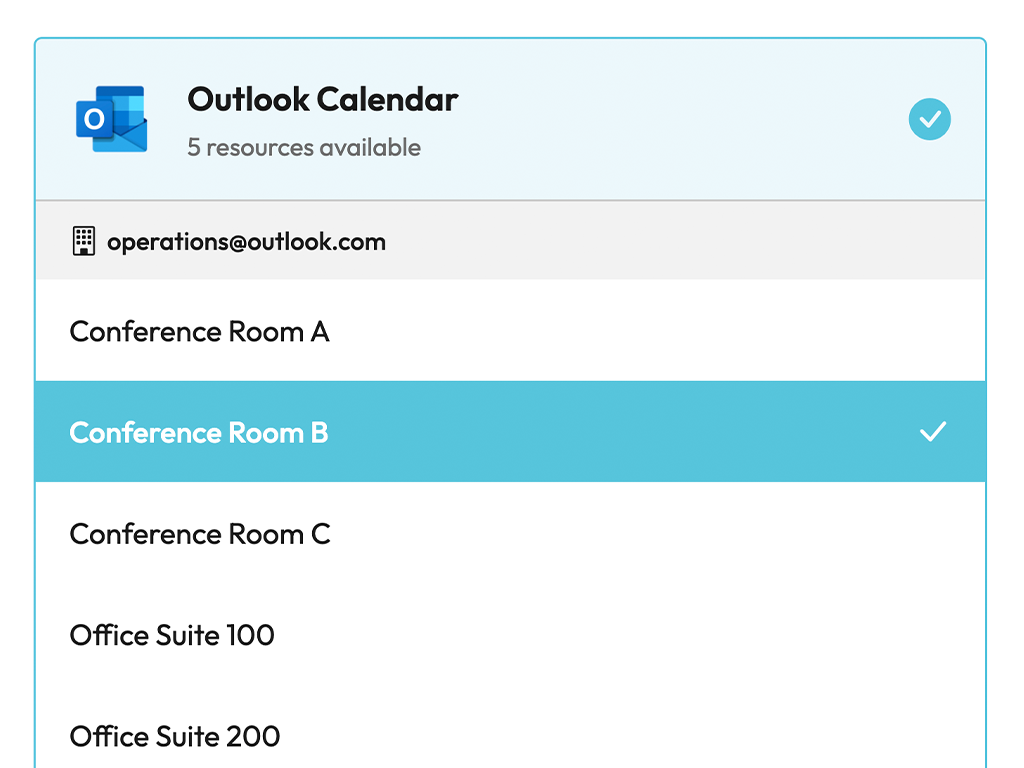
- In the Croissant partner dashboard, open Conference Rooms
- Assign each conference room to its Outlook calendar
Every editable calendar on your connected account is listed, so you can give each room its own dedicated calendar.
Step 3: Testing
Before going live, confirm everything is wired up correctly.
How to Test
- Open one of your conference rooms on Croissant
- Confirm its availability matches Outlook Calendar
If availability lines up, Croissant is talking to Outlook Calendar and your integration is ready to go. If something looks off, run Test on the connection in the partner portal (it verifies your authorization, account, and calendars), or reach out to our team for help.
FAQ
Frequently Asked Questions
Connecting takes about two minutes: you sign in with your Microsoft account and authorize Croissant, and the connection is ready. If you get stuck, email partners@getcroissant.com and we'll help you get set up.
Croissant requests permission to read your basic profile and to view and manage calendars on your account. It never touches your email, files, or any other part of your Microsoft account.
Both Microsoft 365 work and school accounts and personal Outlook.com accounts work. Sign in with the account that owns the calendars you want to connect to your conference rooms.
Yes. Every editable calendar on your connected account is listed when you map rooms, so you can create a dedicated calendar in Outlook for each conference room and keep bookings cleanly separated.
No. Members book entirely through Croissant and never touch Outlook. The integration is invisible to them.
Let Croissant sync your conference rooms with Outlook Calendar
Get started with Outlook Calendar conference room availability synchronisation on Croissant. Our partnerships team is here to help you every step of the way.
- ✓ Seamless availability synchronisation for your conference rooms
- ✓ Easy configuration through the Croissant partner portal
- ✓ Dedicated support from our partnerships team