How to Integrate Kisi Smart Locks with Croissant
A step-by-step guide to connecting your Kisi smart locks with the Croissant platform. Set up seamless access control for your coworking space in just a few steps.


Connect Kisi to Croissant in Minutes
Kisi is a modern access control platform that lets you manage who enters your space, all from the cloud. Once connected to Croissant, members with active bookings can unlock your doors directly from the Croissant app, eliminating the need for key cards or fobs.
Here's how to get everything connected.
Step 1: Grant Croissant Access
To get started, Croissant needs user-level access to your Kisi organization so we can manage lock permissions for your members.
What You Need to Do
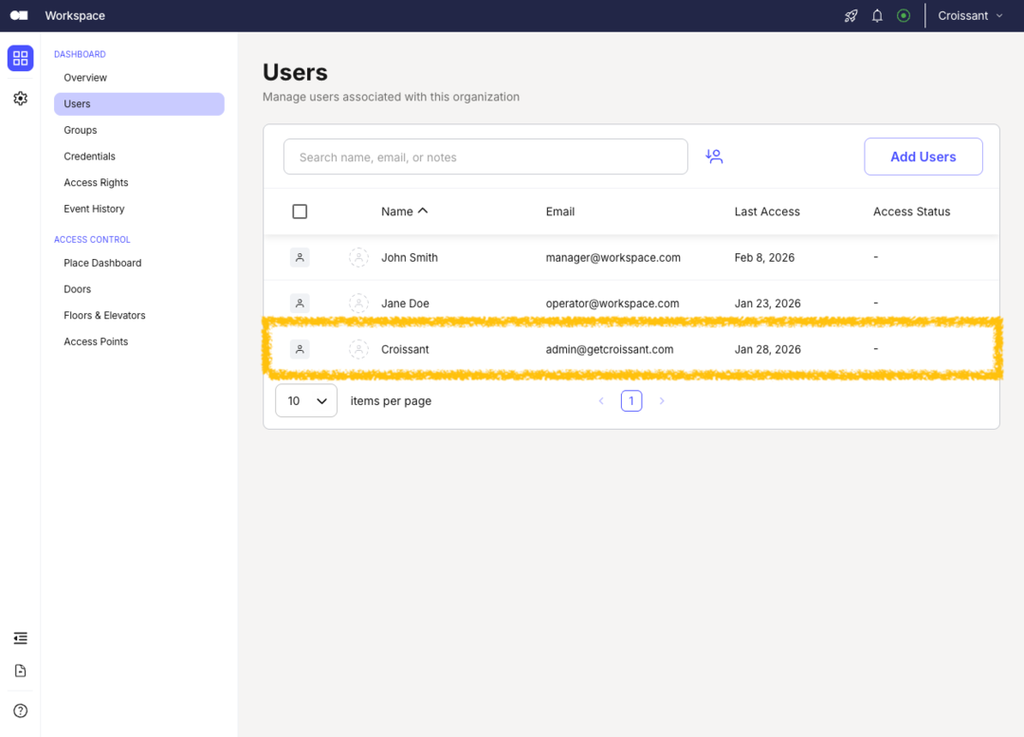
- Access your Kisi portal: Sign in to your Kisi account and navigate to the Users section.
- Invite Croissant: Add admin@getcroissant.com as a user on your Kisi portal. This allows Croissant to communicate with your locks and grant access to Croissant members.
Step 2: Collect Your Kisi Details
Next, grab one key detail from your Kisi dashboard:
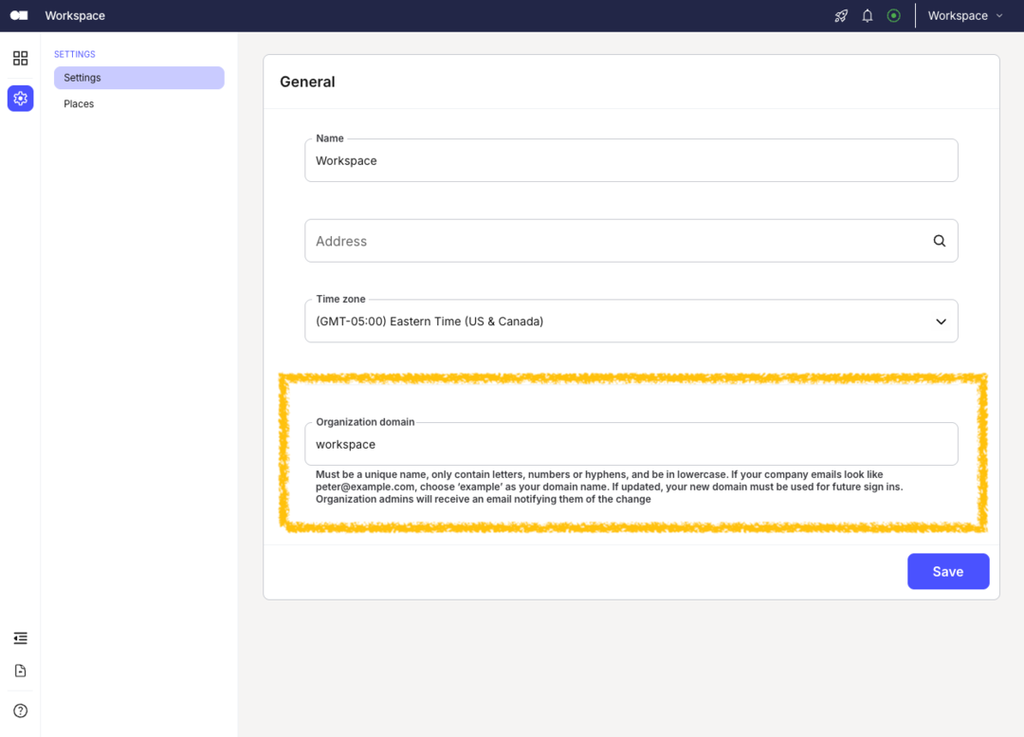
- Domain: Your Kisi organization domain namespace (e.g., workspace)
Your domain appears in the browser URL while you're in the Kisi portal.
Step 3: Configure in Croissant
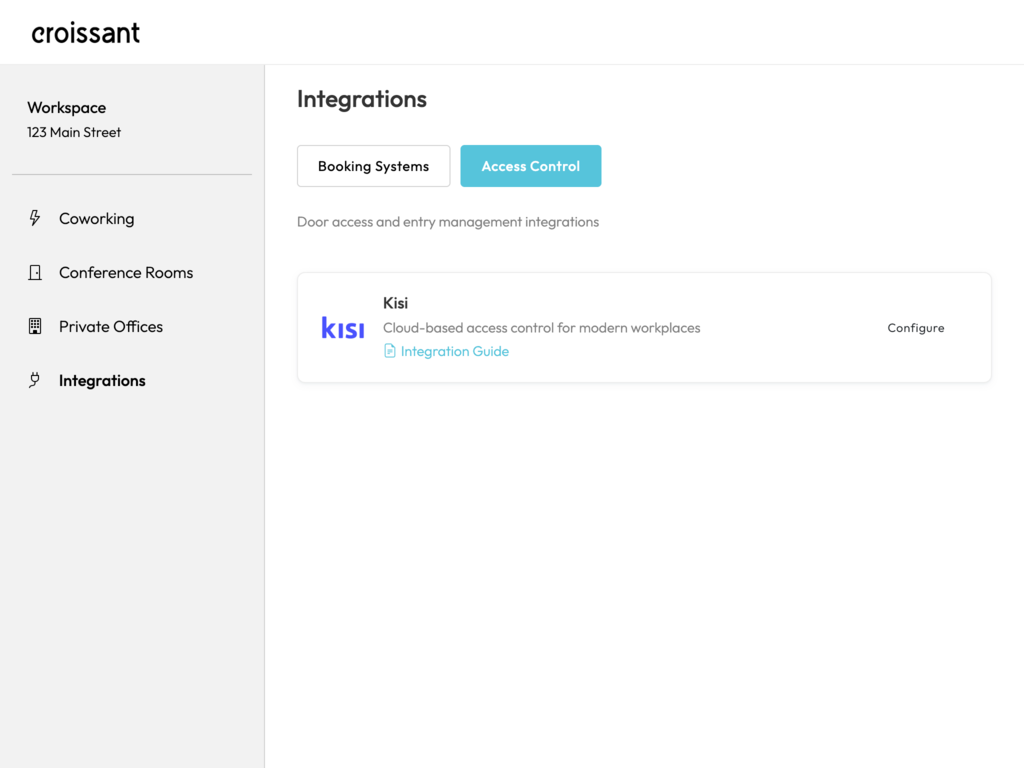
With your Kisi domain in hand, head to the Croissant Portal to link your organization.
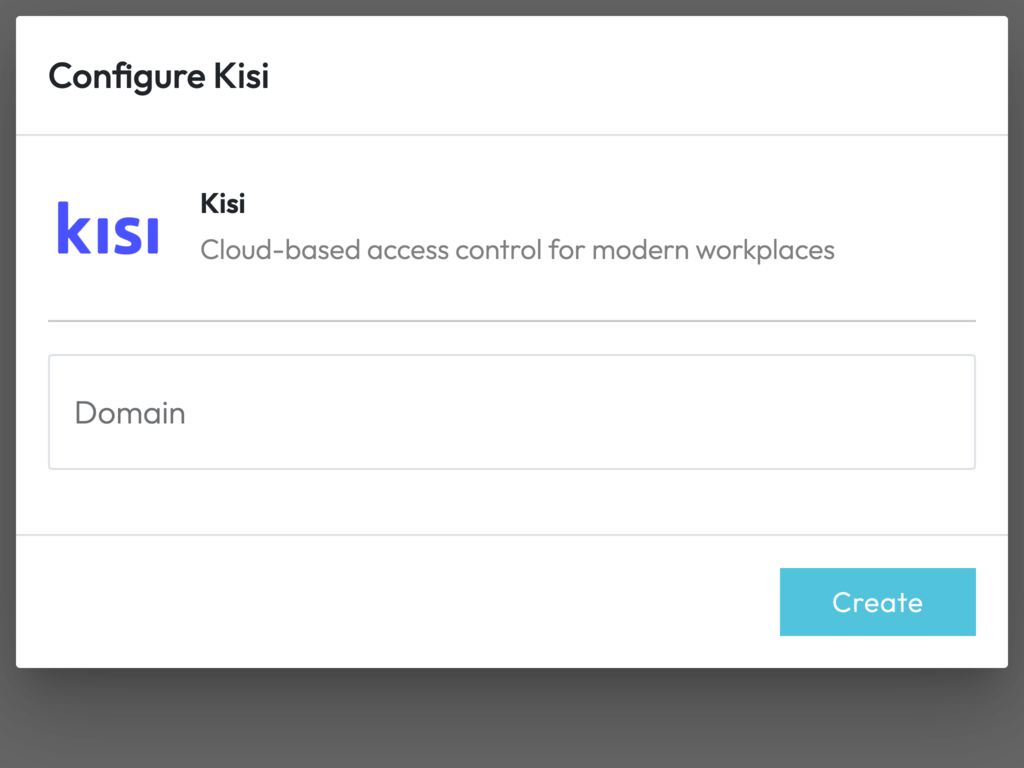
How to Connect
- Sign into the Croissant Portal
- Go to Integrations > Access Control
- Choose Kisi and hit Configure
- Fill in your Domain
Step 4: Activation by Croissant
Once your details are submitted, our team takes it from here. We'll generate secure API keys and establish the connection with your Kisi system. This typically takes less than 24 hours.
You'll receive a confirmation email as soon as the integration is live. After that, head to the next step to add your locks.
Step 5: Adding Locks
Once your integration is activated, Croissant automatically discovers the locks in your Kisi organization.
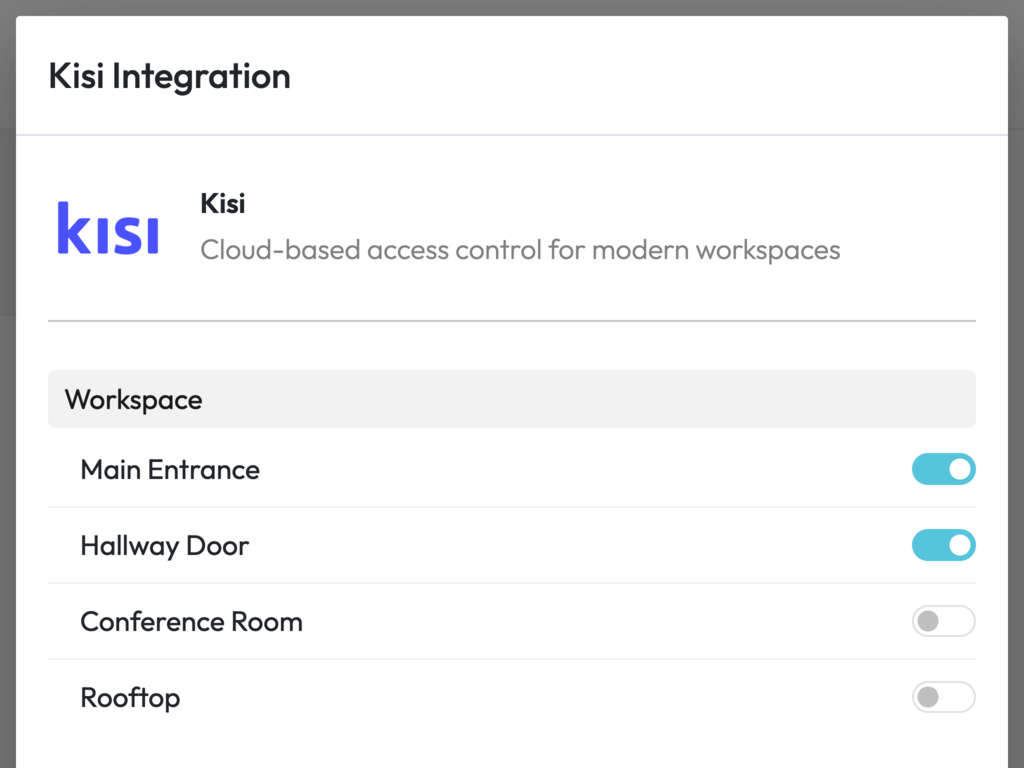
To Add Your Locks
- Head to Integrations > Access Control > Kisi
- Open your connection to see the discovered locks, grouped by location
- Toggle on each door you want to connect to Croissant
Step 6: Verify Your Setup
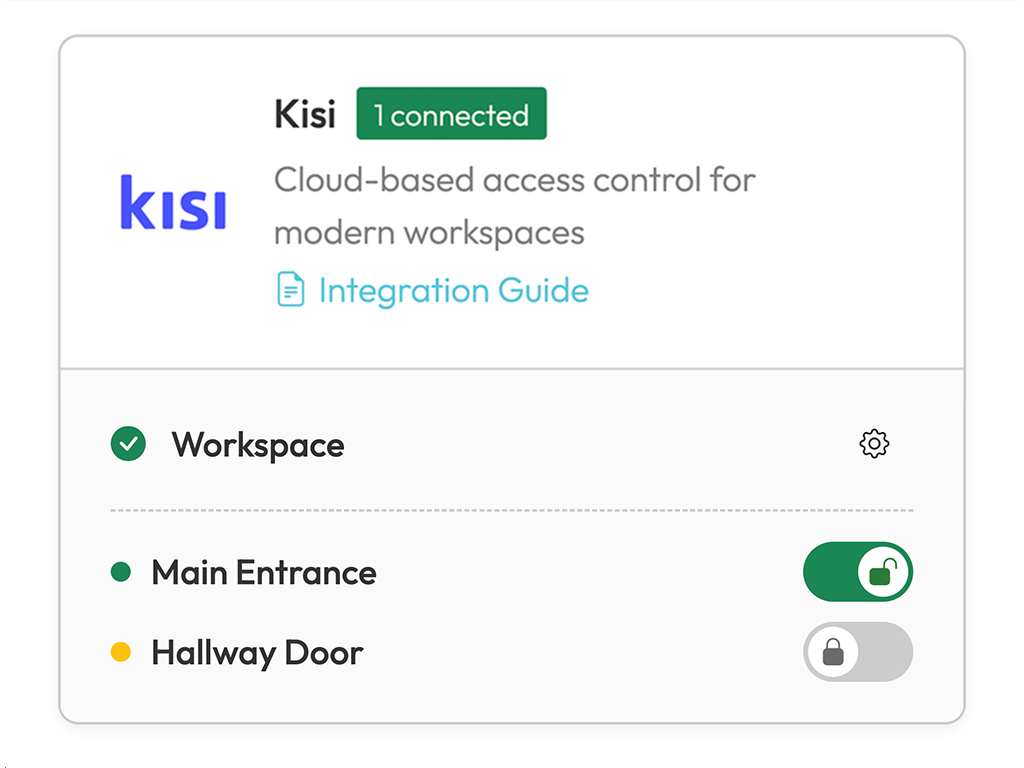
Once your doors are added, test them right from the list, flip a door's unlock toggle and confirm it opens. If something doesn't look right, verify your domain or contact our team.
FAQ
Frequently Asked Questions
The setup on your end takes just a few minutes, invite Croissant, collect your details, and submit them through the partner portal. Our team will handle the rest and have your integration live within 24 hours. Questions? Email partners@getcroissant.com.
Any Kisi plan with cloud-based access management will work. If you're not sure whether your plan qualifies, check with your Kisi account manager or reach out to our partnerships team.
Start by confirming that admin@getcroissant.com has been added as a user with the right permissions in Kisi. Then double-check that the domain matches what's in your Kisi portal. Still stuck? Drop us a line at partners@getcroissant.com and we'll dig in.
Yes, locks can be edited or removed from the Access Control section in the partner portal whenever you need. Any changes apply immediately.
All communication between Croissant and Kisi is handled through secure API keys. Only members with a confirmed, active booking at your space can unlock doors, and autonomous spaces may require additional identity verification.
Let Croissant automate your space with Kisi
Get started with Kisi smart lock integration on Croissant. Our partnerships team is here to help you every step of the way.
- ✓ Seamless smart lock access for your coworking members
- ✓ Easy configuration through the Croissant partner portal
- ✓ Dedicated support from our partnerships team